next analytics
In the ground since Sat Nov 01 2025
Last watered inSat Nov 01 2025
Related Topics
Next.js Analytics
Overview
Next.js provides two official packages for monitoring your application's performance and user behavior:
- @vercel/analytics - User behavior tracking and custom events
- @vercel/speed-insights - Real User Monitoring (RUM) for Core Web Vitals
Both tools work seamlessly on Vercel deployments with zero configuration, but can also be used with custom deployments.
Installation
Installing Both Packages
Installing Individually
Setup
App Router Setup (Next.js 13+)
Add both components to your root layout file:
app/layout.tsx
Pages Router Setup (Next.js 12 and below)
Add both components to your _app.tsx file:
pages/_app.tsx
Analytics Features
Automatic Page View Tracking
The Analytics component automatically tracks:
- Page views across all routes
- User sessions
- Geographic data
- Device information
- Referrer sources
Custom Event Tracking
Track custom user interactions:
Event Properties
You can attach custom properties to events:
Speed Insights Features
Core Web Vitals Monitoring
Speed Insights automatically tracks:
- LCP (Largest Contentful Paint) - Loading performance
- FID (First Input Delay) - Interactivity
- CLS (Cumulative Layout Shift) - Visual stability
- TTFB (Time to First Byte) - Server response time
Real User Monitoring
Unlike synthetic testing, Speed Insights collects data from real users:
- Device-specific performance metrics
- Geographic performance variations
- Network condition impact
- Browser-specific metrics
Configuration
Development Mode
By default, analytics are disabled in development. To enable:
Custom Endpoint (Self-Hosting)
For non-Vercel deployments, configure a custom endpoint:
Add environment variable:
Debug Mode
Enable debug logs during development:
Enabling Analytics on Vercel Dashboard
After deploying your application with the Analytics and SpeedInsights components, you need to enable these features on Vercel:
Step 1: Navigate to Analytics Tab
- Go to your project on the Vercel dashboard
- Click the Analytics tab in the navigation
Step 2: Enable Web Analytics
You'll see an "Enable" button. Click it to open the configuration modal.
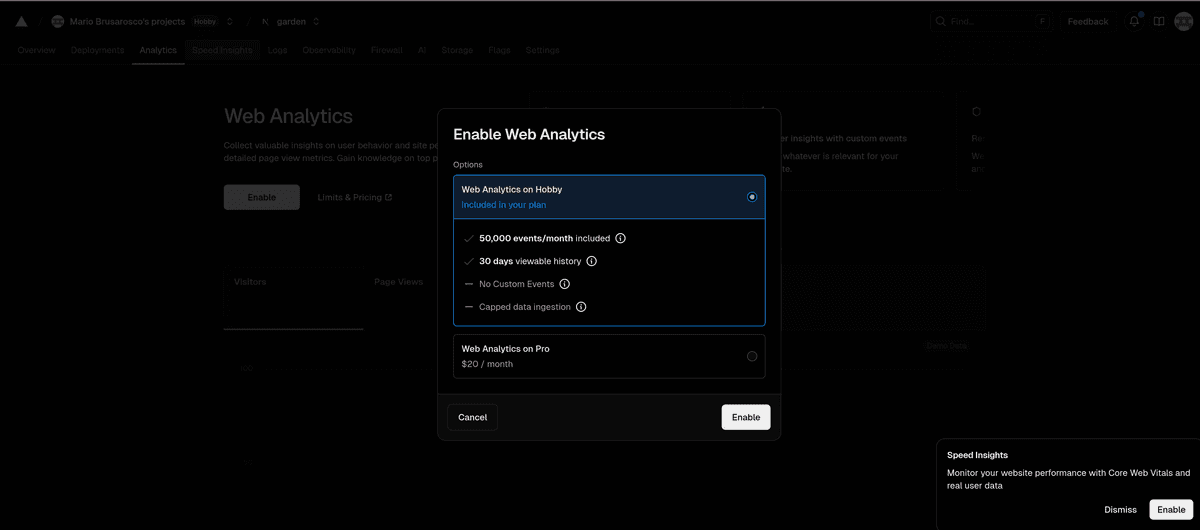
Step 3: Choose Your Plan
Web Analytics on Hobby (Free):
- 50,000 events/month included
- 30 days viewable history
- No Custom Events
- Capped data ingestion
Web Analytics on Pro ($20/month):
- Higher limits for custom events and data retention
Step 4: Enable Speed Insights
After enabling Analytics, you'll see a similar prompt for Speed Insights in the bottom right corner. Click Enable to activate it as well.
Viewing Your Data
Once enabled:
-
Analytics Tab - View user behavior data:
- Page views
- Visitors
- Top pages
- Geographic distribution
- Device and browser data
-
Speed Insights Tab - View performance metrics:
- Core Web Vitals (LCP, FID, CLS, TTFB)
- Real user monitoring data
- Performance trends over time
Data Collection Timeline
- Initial data appears within 5-10 minutes after enabling
- Full metrics populate as real users visit your site
- Historical trends build up over the 30-day retention period
Best Practices
1. Privacy Considerations
Analytics respects user privacy:
- No cookies are used
- No personal data is collected
- GDPR compliant by default
2. Performance Impact
Both packages are designed to be lightweight:
- Analytics: ~1kb gzipped
- Speed Insights: ~2kb gzipped
- Loaded asynchronously after page load
3. Custom Events Strategy
4. Combining with Other Tools
Analytics and Speed Insights work alongside:
- Google Analytics
- Mixpanel
- PostHog
- Custom analytics solutions
Common Patterns
Conditional Loading
Load analytics only in production:
Route-Specific Tracking
Track specific route patterns:
Troubleshooting
Analytics Not Showing Data
- Verify components are added to root layout
- Check environment variables for custom deployments
- Ensure project is deployed (doesn't work on localhost by default)
- Wait 5-10 minutes for data to appear
Speed Insights Missing Metrics
- Ensure modern browser support (Chrome 60+, Firefox 55+, Safari 12+)
- Check that HTTPS is enabled
- Verify SpeedInsights component is properly imported
Debug Mode Not Working
Migration from Other Analytics
From Google Analytics
You can run both simultaneously:
From Custom Solutions
Use the beforeSend hook to bridge data: